Timesheet Interface
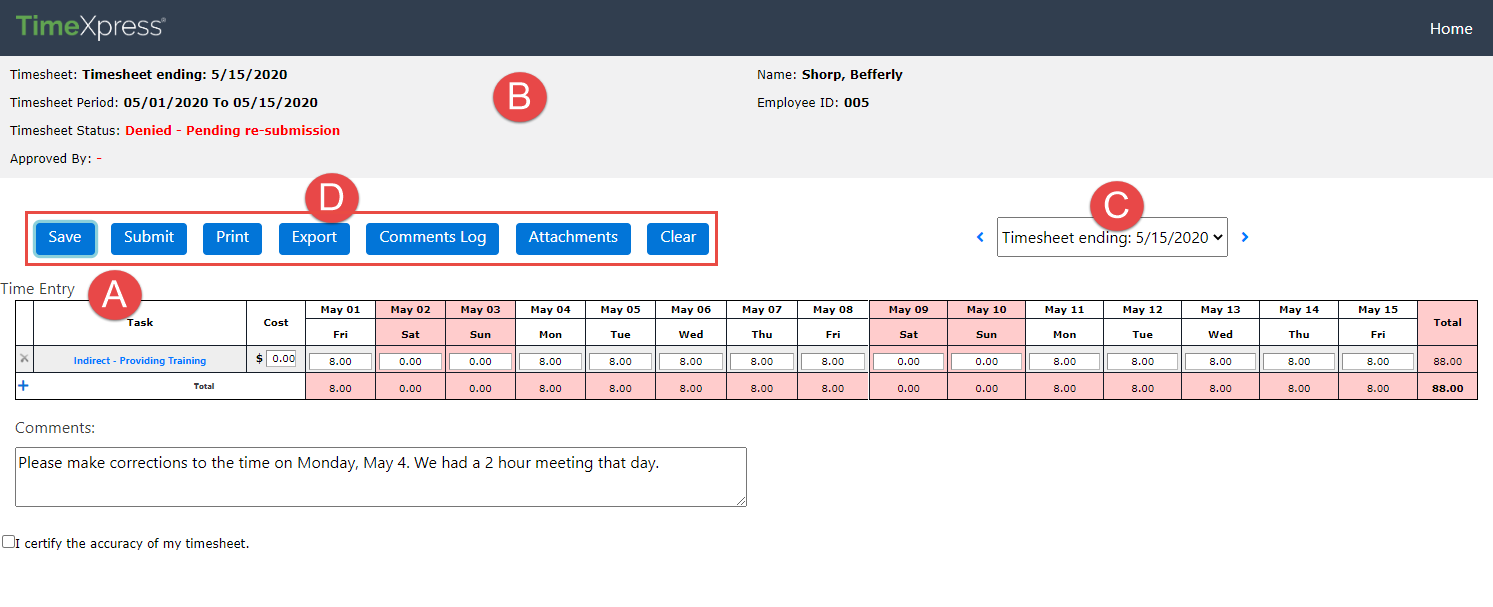
The timesheet interface allows you to log all your time spent on projects and other work-related activities. An example interface is shown below and described in the following table.
|
Ref |
Function |
Description |
|
A |
Timesheet |
Enter hours for the time period in the Timesheet. There are lines for each Task, and fields for entering hours for each task on the correct Days. You can add more tasks as needed to capture all your activities. |
|
B |
Details |
The timesheet Details are included at the top, including the Timesheet Period and Status. |
|
C |
Select Timesheet |
Use the Dropdown to view previous timesheets. Different actions are available on previously submitted timesheets. See the View Previous Timesheets section for details. |
|
D |
Actions |
Actions are available on the timesheet. The actions available depend on the Timesheet Status, with additional options for Administrators not shown here. Use the Save button to save a timesheet in progress (when entering hours at the end of the day, for example). Click Submit when you are ready to submit the final timesheet. You can also Print and Export submitted timesheets, view the timesheet Comments Log, add and view Attachments, and Clear your timesheet entries. |